Google Docs has become one of the most widely used word-processing tools in the world. Whether you are a student, professional, business owner, or casual writer, it offers a flexible and powerful way to create, edit, and share documents online. Unlike traditional word processors that are tied to a single device, Google Docs works entirely in the cloud, making your documents accessible from almost anywhere.
This beginner’s guide explains Google Docs from the ground up. It covers what Google Docs is, how it works, its core features, and practical tips to help you use it efficiently. By the end of this guide, you will have a solid understanding of how to create professional documents, collaborate with others, and manage your files with confidence.
What Are Google Docs?
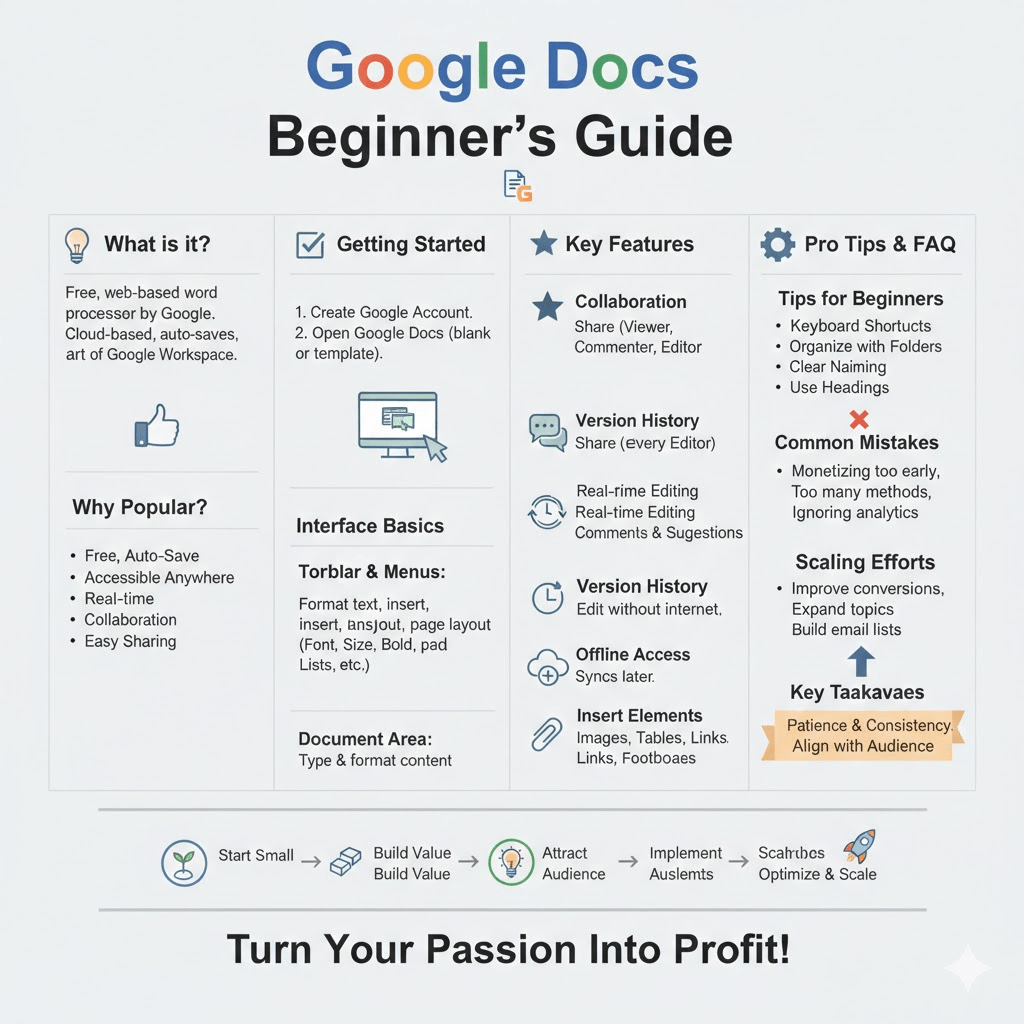
Google Docs is a free, web-based word processor developed by Google. It allows users to create and edit text documents directly in a web browser without installing any software. Documents are stored online in Google Drive, which means your work is automatically saved and synced across devices.
Google Docs is part of the Google Workspace suite, which also includes tools like Google Sheets, Google Slides, and Google Forms. While it is simple enough for beginners, it also offers advanced features that make it suitable for professional and academic use.
Why Google Docs Is Popular
Google Docs stands out because of its simplicity, accessibility, and collaboration features. Many people choose it over traditional word processors for the following reasons:
- It is free to use with a Google account
- Documents are saved automatically
- Files can be accessed from any device with internet access
- Multiple people can work on the same document at the same time
- Sharing and permissions are easy to manage
These advantages make Google Docs especially useful for remote work, group projects, and teams spread across different locations.
Read Also: How to Start Earning in Dollars from Any Country
Getting Started with Google Docs
1. Creating a Google Account
To use Google Docs, you need a Google account. If you already use Gmail, YouTube, or Google Drive, you already have one. Once logged in, you can access Google Docs directly through your browser.
2. Opening Google Docs
You can access Google Docs by visiting the Google Docs website or through Google Drive. From there, you can create a new document or open an existing one.
To create a new document, you can start with a blank page or choose from several built-in templates designed for resumes, letters, reports, and other common document types.
Understanding the Google Docs Interface
When you open a document, the interface is clean and easy to navigate. Understanding the layout will help you work faster and more confidently.
1. The Toolbar and Menus
At the top of the document, you will find the menu bar and toolbar. These include options for formatting text, inserting elements, adjusting page layout, and managing document settings.
Common tools include:
- Font style and size
- Bold, italic, and underline
- Text alignment
- Line spacing
- Bullet and numbered lists
The menus provide access to more advanced features such as page setup, version history, and document sharing options.
2. The Document Area
The main document area is where you type and format your content. It behaves much like a traditional word processor, allowing you to click, type, select text, and apply formatting.
Creating and Formatting Documents
1. Typing and Editing Text
Typing in Google Docs feels familiar if you have used any word processor before. You can click anywhere in the document to start typing, highlight text to edit it, and use keyboard shortcuts to speed up your work.
Edits are saved automatically, so there is no need to worry about losing your progress.
2. Formatting Text
Google Docs offers a wide range of formatting options to help you create clean and professional documents. You can change fonts, adjust spacing, and apply styles to headings and paragraphs.
Using heading styles is especially important for long documents. Headings improve readability and allow Google Docs to generate an automatic table of contents.
3. Page Layout and Structure
You can customize page margins, orientation, and size through the page setup menu. This is useful when preparing documents for printing or formal submission.
Working with Templates
Templates are pre-designed documents that help you save time. Google Docs provides templates for resumes, reports, proposals, meeting notes, and more.
Using templates is ideal for beginners because they offer a clear structure and formatting guidelines. You can customize the content while keeping a professional layout intact.
Collaboration and Sharing Features
One of the strongest features of Google Docs is real-time collaboration.
1. Sharing a Document
You can share a document by entering email addresses or generating a shareable link. When sharing, you can control what others are allowed to do.
Permission levels include:
- Viewer: Can read only
- Commenter: Can add comments but not edit
- Editor: Can make changes to the document
This flexibility makes it easy to collaborate while maintaining control over your content.
2. Real-Time Editing
Multiple users can work on the same document at the same time. Changes appear instantly, and each user’s cursor is visible. This eliminates the need to send files back and forth.
3. Comments and Suggestions
Comments allow collaborators to leave feedback without changing the main text. Suggestion mode lets users propose edits that can be accepted or rejected later. These tools are especially useful for reviews and group editing.
Version History and Auto-Save
Google Docs automatically saves every change you make. In addition, it keeps a detailed version history. You can view previous versions of a document and see who made specific changes. This makes it easy to track progress and restore earlier versions if needed.
Version history is especially valuable for collaborative projects where multiple people contribute over time.
Working Offline with Google Docs
Although Google Docs is cloud-based, it also offers offline functionality. By enabling offline access, you can edit documents without an internet connection. Changes are synced automatically once you reconnect.
This feature is useful for travel, unreliable internet connections, or working on the go.
1. Inserting Elements into Documents
Google Docs allows you to insert various elements to enhance your documents.
2. Images and Media
You can insert images from your computer, Google Drive, or the web. Images can be resized, aligned, and wrapped with text for better layout control.
3. Tables
Tables are useful for organizing information. You can insert tables with customizable rows and columns and adjust their formatting to match your document style.
4. Links and Footnotes
Hyperlinks allow you to reference external sources or other documents. Footnotes are useful for academic or research-based writing, providing citations without cluttering the main text.
Google Docs for Students and Professionals
Google Docs is widely used in education and professional environments.
For students, it supports essay writing, group assignments, and research projects. Features like comments, suggestions, and citation tools make academic writing more manageable.
For professionals, Google Docs is ideal for reports, proposals, meeting notes, and collaborative documents. Its integration with other Google tools streamlines workflow and communication.
Comparing Google Docs with Traditional Word Processors
The table below highlights key differences between Google Docs and traditional desktop word processors.
| Feature | Google Docs | Traditional Word Processors |
|---|---|---|
| Cost | Free | Often paid |
| Storage | Cloud-based | Local storage |
| Auto-save | Yes | Manual or limited |
| Collaboration | Real-time | Limited |
| Accessibility | Any device with internet | Device-specific |
| Updates | Automatic | Manual |
Tips for Beginners to Work Smarter
Beginners can improve efficiency by adopting a few best practices early on.
Using keyboard shortcuts can significantly speed up editing. Organizing documents with folders in Google Drive helps keep files easy to find. Naming documents clearly and consistently also saves time.
Learning how to use headings, comments, and version history will make your workflow smoother as your documents become more complex.
Common Beginner Mistakes to Avoid
Some beginners treat Google Docs like a basic notepad and overlook its powerful features. Not using headings, ignoring collaboration tools, and failing to organize files are common mistakes.
Another frequent error is improper sharing permissions, which can lead to accidental edits or restricted access. Always review sharing settings before sending a document to others.
Frequently Asked Questions (FAQ)
1. Is Google Docs completely free?
Yes, Google Docs is free for individual users with a Google account. It includes generous storage through Google Drive, which is shared across Google services.
2. Do I need internet access to use Google Docs?
Internet access is required for initial setup and syncing. However, you can enable offline mode to work without a connection and sync changes later.
3. Can Google Docs replace Microsoft Word?
For most users, Google Docs can fully replace Microsoft Word. It covers the majority of writing and formatting needs. However, users with very advanced formatting requirements may still prefer desktop software.
4. Are my documents secure?
Google Docs uses strong security measures to protect data. You also control who can access your documents through sharing permissions.
5. Can I export Google Docs files?
Yes, documents can be downloaded in various formats, including PDF and Word-compatible files. This makes it easy to share documents with users who do not use Google Docs.
6. How many people can collaborate on one document?
Multiple users can collaborate simultaneously. Google Docs is designed to handle real-time editing efficiently, even with many contributors.
Google Docs is more than just a simple writing tool. It is a powerful platform that combines ease of use with advanced features for collaboration, organization, and productivity. For beginners, it offers an intuitive way to start writing without worrying about software installation or file management.
By understanding its core features and adopting good habits early, you can use Google Docs to create polished documents, collaborate effectively, and manage your work with confidence. Whether for school, work, or personal projects, Google Docs provides everything you need to get started and grow your skills over time.
Read Also: Do Monkeys and Chimpanzees Menstruate? The Surprising Truth!