PDF files are widely used because they preserve formatting and look the same on any device. However, when you need to edit text, update information, or reuse content, PDFs can quickly become inconvenient. This is where converting a PDF to a Word document becomes essential. Microsoft Word files are easy to edit, format, and collaborate on, making them far more flexible for everyday work.
The good news is that you do not need expensive software or advanced technical skills to convert PDF files to Word documents. There are several easy and completely free methods available, suitable for beginners and professionals alike. This guide explains those methods step by step, highlights their strengths and limitations, and helps you choose the best option for your specific needs.
Why Convert a PDF to Word?
Understanding the reasons behind PDF-to-Word conversion helps you choose the right method and manage expectations.
PDF files are designed primarily for viewing and sharing, not editing. While some PDF editors exist, they often come with limitations or costs. Word documents, on the other hand, allow you to edit text, rearrange content, change formatting, and collaborate easily.
Common reasons for converting PDF to Word include:
- Editing or updating document content
- Reusing text for reports, articles, or proposals
- Collaborating with others using Word tools
- Extracting text from scanned or downloaded PDFs
Read ALso: How to Cure Ulcer with Unripe Paw-Paw (Papaya)
Things to Know Before Converting
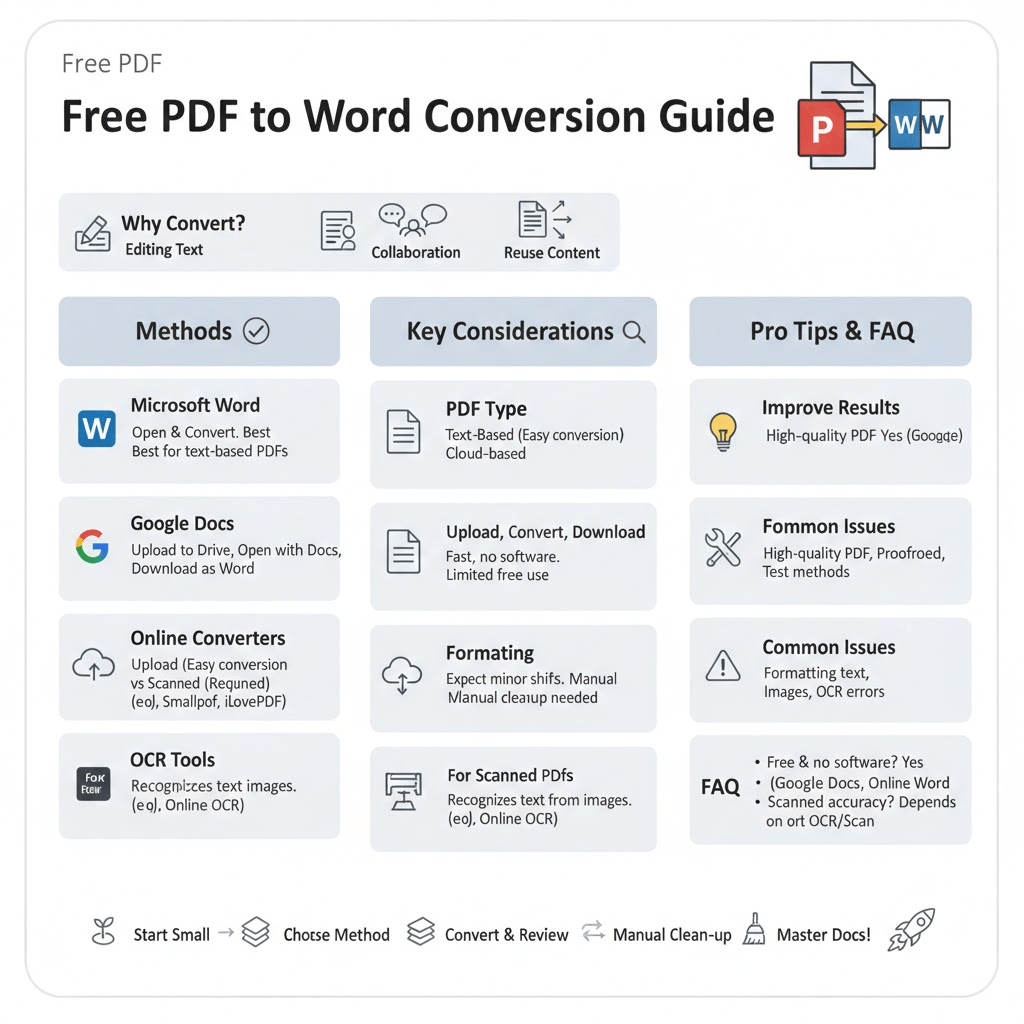
Before converting a PDF to Word, it is important to understand that not all PDFs are the same. The type of PDF you are working with affects the conversion quality.
Text-Based PDFs vs Scanned PDFs
Text-based PDFs are created digitally and contain selectable text. These usually convert cleanly to Word with minimal formatting issues.
Scanned PDFs are essentially images of documents. Converting them requires Optical Character Recognition (OCR), which attempts to recognize text from images. OCR-based conversions may contain errors, especially if the scan quality is poor.
Formatting Expectations
No free method guarantees perfect formatting. Tables, images, columns, and fonts may shift slightly. After conversion, some manual cleanup is often necessary.
Method 1: Convert PDF to Word Using Microsoft Word
One of the simplest and most reliable free methods is using Microsoft Word itself.
How This Method Works
Recent versions of Microsoft Word can open PDF files directly and convert them into editable Word documents. Word automatically processes the PDF and attempts to preserve layout and formatting.
Step-by-Step Instructions
- Open Microsoft Word on your computer
- Click “File” and select “Open”
- Choose the PDF file you want to convert
- Confirm the conversion prompt
- Wait for Word to convert the file
Once completed, the document opens as a Word file that you can edit and save normally.
Pros and Cons
This method works best for text-based PDFs and offers good formatting accuracy. However, it may struggle with complex layouts or scanned PDFs unless OCR is applied.
Method 2: Use Google Docs for Free Conversion
Google Docs provides a completely free, browser-based way to convert PDFs into editable documents.
How Google Docs Converts PDFs
When you upload a PDF to Google Drive and open it with Google Docs, the platform automatically converts the file into a Google Docs document, which can then be downloaded as a Word file.
Step-by-Step Instructions
- Upload your PDF file to Google Drive
- Right-click the file and select “Open with”
- Choose Google Docs
- Wait for the document to open
- Click “File,” then “Download,” and select Microsoft Word format
What to Expect
Text is usually extracted accurately, but formatting may not be perfect. Images may be misplaced, and complex layouts may require manual adjustment.
This method is especially useful for users who do not have Microsoft Word installed.
Method 3: Free Online PDF to Word Converters
Online conversion tools are popular because they require no software installation and work on any device.
How Online Converters Work
You upload your PDF file to a website, the file is converted on their server, and you download the resulting Word document.
Key Advantages
Online tools are convenient, fast, and accessible from anywhere. Most free versions handle basic conversions well.
Important Considerations
When using online converters:
- Avoid uploading sensitive or confidential documents
- Check file size limits
- Expect occasional watermarks or usage limits
Free tools are ideal for occasional use but may not be suitable for large or private documents.
Method 4: Using Free PDF Reader Software
Some free PDF readers include built-in conversion features.
How This Option Works
Certain PDF reader applications allow you to export PDFs directly into Word format. These tools often offer limited free conversions per day or basic functionality without payment.
When to Use This Method
This approach is useful if you already use a PDF reader regularly and want a simple, integrated solution without uploading files online.
Method 5: OCR Tools for Scanned PDFs
If your PDF is scanned, OCR is required to extract text accurately.
Understanding OCR
OCR technology analyzes images of text and converts them into editable characters. Free OCR tools can handle simple documents but may struggle with handwriting or low-quality scans.
Using OCR with Free Tools
Some free online converters and document platforms include basic OCR features. Results depend heavily on scan clarity and document complexity.
Comparison of Free PDF to Word Conversion Methods
The table below summarizes the most common free methods and when to use them.
| Method | Best For | Internet Required | OCR Support | Ease of Use |
|---|---|---|---|---|
| Microsoft Word | Text-based PDFs | No | Limited | Very Easy |
| Google Docs | General use | Yes | Basic | Easy |
| Online Converters | Quick conversions | Yes | Often included | Very Easy |
| PDF Reader Software | Regular PDF users | No | Limited | Easy |
| OCR Tools | Scanned PDFs | Yes | Yes | Moderate |
Tips to Improve Conversion Results
Regardless of the method you choose, a few best practices can improve your results.
Use high-quality PDFs whenever possible. Clear text and clean layouts convert more accurately. After conversion, review the document carefully and adjust formatting manually. Tables, bullet points, and images often require fine-tuning.
If accuracy is critical, test different methods and compare results before finalizing your document.
Common Problems and How to Fix Them
Formatting Issues
Spacing, fonts, and alignment may change during conversion. Adjust styles in Word using headings, paragraph spacing, and table tools.
Missing or Distorted Images
Some converters fail to place images correctly. Reinsert images manually if necessary.
Text Errors from OCR
Scanned PDFs may produce spelling or recognition errors. Proofread carefully and correct mistakes before sharing or publishing.
Frequently Asked Questions (FAQ)
Can I convert PDF to Word for free without installing software?
Yes. Google Docs and online converters allow you to convert PDFs to Word entirely through a web browser without installing any software.
Which free method gives the best formatting?
Microsoft Word generally provides the best formatting for text-based PDFs. However, results vary depending on document complexity.
Are online PDF converters safe to use?
They are generally safe for non-sensitive documents. Avoid uploading confidential or private files unless the service clearly states strong data protection policies.
Can scanned PDFs be converted accurately?
Yes, but accuracy depends on OCR quality and scan clarity. Clean, high-resolution scans produce better results.
Will the converted Word document look exactly like the PDF?
In most cases, minor formatting differences will appear. Free tools aim for accuracy, but manual adjustments are often necessary.
Converting a PDF to Word does not have to be complicated or expensive. With the free methods available today, anyone can transform PDFs into editable documents quickly and easily. Whether you choose Microsoft Word, Google Docs, an online converter, or OCR tools, the right option depends on your document type and editing needs.
By understanding the strengths and limitations of each method, you can select the most efficient approach and avoid unnecessary frustration. With a bit of cleanup after conversion, you can turn even the most rigid PDF into a flexible Word document ready for editing, sharing, and collaboration.
Do you have any questions, suggestions, or contributions? If so, please feel free to use the comment box below to share your thoughts. We also encourage you to kindly share this information with others who might benefit from it. Since we can’t reach everyone at once, we truly appreciate your help in spreading the word. Thank you very much for your support and for sharing!
Read Also: How to Make Money Online with Digital Skills