
Zoom has become one of the most widely used video communication platforms in the world. From online classes and business meetings to webinars, interviews, and virtual events, Zoom powers millions of conversations every day. While many people know the basics, far fewer understand how to use Zoom efficiently and professionally. Learning how to use Zoom like a pro can significantly improve communication, productivity, and overall meeting quality.
This tutorial is designed as a complete, beginner-friendly yet in-depth guide. It walks you through Zoom from the ground up and gradually introduces more advanced features, explaining not just how they work, but how and when to use them effectively. By the end of this guide, you will feel confident hosting, joining, managing, and optimizing Zoom meetings in a professional way.
What Is Zoom and How It Works
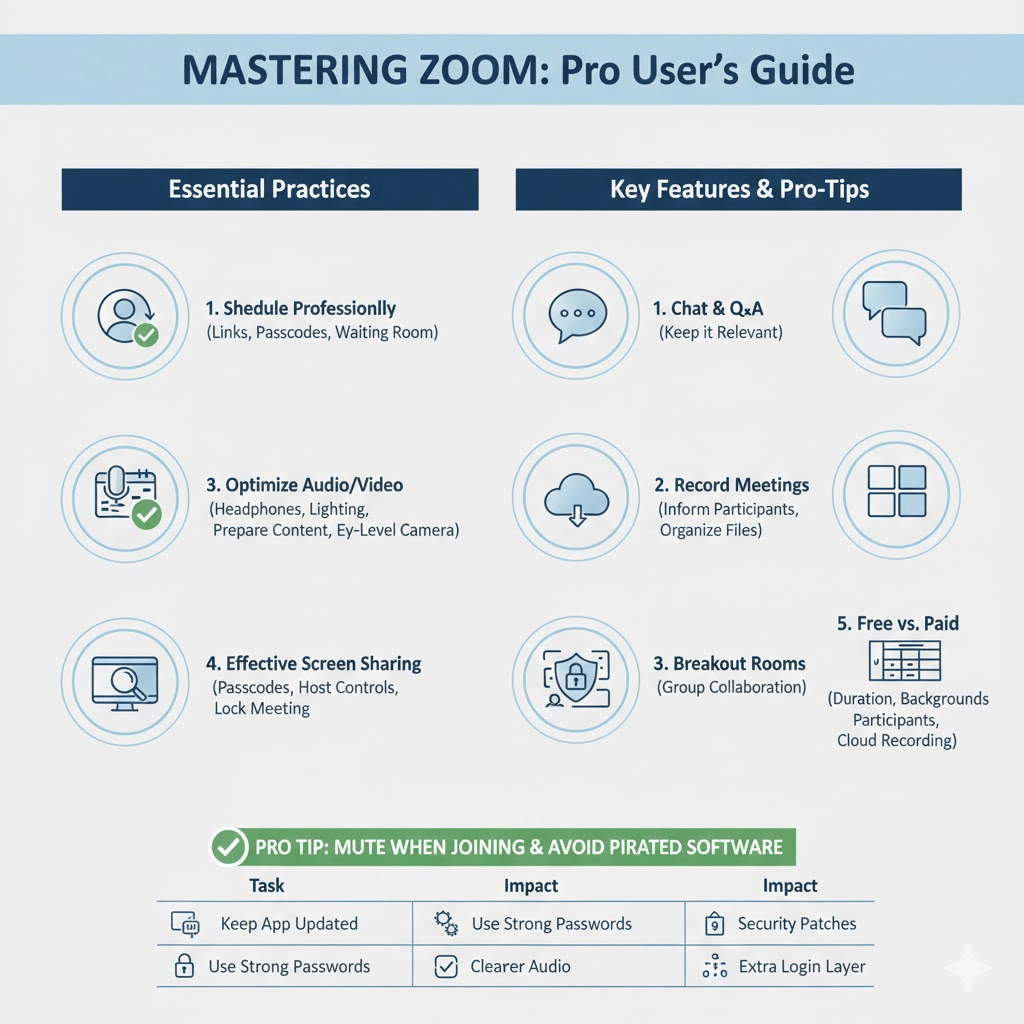
Zoom is a cloud-based video conferencing platform that allows users to connect through video, audio, chat, and screen sharing. Unlike traditional calling tools, Zoom is designed for group communication and collaboration. It works across devices, including desktop computers, smartphones, tablets, and web browsers, making it accessible almost anywhere.
Zoom operates by connecting participants through Zoom’s servers rather than directly to each other. This allows meetings to scale from two participants to hundreds or even thousands, depending on the plan. Zoom also integrates features such as recording, breakout rooms, polls, and virtual backgrounds, which extend its usefulness far beyond simple video calls.
Creating a Zoom Account
To get the most out of Zoom, creating an account is highly recommended. While you can join meetings without an account, hosting meetings and accessing advanced features requires one.
Creating an account is straightforward. You can sign up using an email address or link your account with existing services. Once registered, you gain access to the Zoom dashboard, where you can schedule meetings, manage recordings, update settings, and customize your profile. Setting up your account properly from the beginning helps avoid confusion later and ensures a more professional experience.
Read Also: Economic Importance, Uses, and By-Products of Mushroom Spores
Installing Zoom on Your Device
Zoom can be used in a web browser, but installing the Zoom app provides better performance and access to full features. The desktop app is available for Windows, macOS, and Linux, while mobile apps are available for Android and iOS devices.
After installation, sign in to your account and allow Zoom to access your microphone, camera, and speakers. Taking a few minutes to test your audio and video settings at this stage can save time and prevent technical issues during actual meetings. Professionals always test their setup before important calls.
When you open Zoom, you are presented with a clean and simple interface. The main options include starting a new meeting, joining a meeting, scheduling a meeting, and sharing your screen. Each of these functions plays a key role in everyday Zoom usage.
Inside a meeting, the control bar at the bottom of the screen contains essential tools such as mute/unmute, video controls, participants list, chat, screen sharing, reactions, and recording options. Familiarity with these controls allows you to manage meetings smoothly without disrupting the flow of conversation.
Joining a Zoom Meeting the Right Way
Joining a Zoom meeting typically requires a meeting link or meeting ID and passcode. Clicking the link automatically opens Zoom and connects you to the meeting. Before entering, Zoom allows you to choose whether to enable your camera and microphone.
Professionally, it is best to join meetings muted, especially if you are entering late or from a noisy environment. Turning on your camera when appropriate helps build engagement and trust, particularly in work or learning environments. Choosing a quiet, well-lit space also contributes to a professional presence.
Hosting Your First Zoom Meeting
Hosting a Zoom meeting gives you control over participant behavior, audio settings, and meeting flow. To start a meeting, click “New Meeting” or use the scheduling option if you want to plan ahead.
As a host, you can mute participants, control screen sharing, enable waiting rooms, and manage chat permissions. These tools help maintain order and prevent disruptions. Hosting effectively requires balancing control with openness, allowing participation while keeping the meeting focused and productive.
Scheduling Meetings Like a Professional
Scheduled meetings are essential for business and organized events. Zoom allows you to schedule meetings directly within the app or through calendar integrations. When scheduling, you can set the date, time, duration, time zone, and meeting options.
Professional scheduling involves enabling waiting rooms, setting passcodes, and disabling unnecessary features that could cause distractions. Clear meeting titles and descriptions also help participants understand the purpose of the session before joining.
Mastering Audio and Video Settings
Audio quality is one of the most important factors in a successful Zoom meeting. Poor sound can make even short meetings frustrating. Zoom offers built-in tools to test and adjust your microphone and speakers. Using headphones or an external microphone can dramatically improve clarity.
Video settings allow you to adjust camera selection, brightness, and background appearance. Positioning your camera at eye level and ensuring proper lighting creates a more engaging and professional visual presence. These small adjustments make a significant difference in how you are perceived.
Using Screen Sharing Effectively
Screen sharing is one of Zoom’s most powerful features. It allows you to present slides, demonstrate software, show documents, or collaborate in real time. Zoom lets you share your entire screen, a specific application window, or a portion of your screen.
Professional screen sharing involves preparing content in advance and closing unnecessary applications to avoid distractions. Using Zoom’s annotation tools can also enhance explanations by allowing you to highlight or draw attention to key points during presentations.
Zoom Chat and In-Meeting Communication
Zoom chat allows participants to send messages during meetings without interrupting the speaker. Chat can be used for sharing links, asking questions, or providing feedback. Hosts can control whether chat is public or private, and whether participants can chat at all.
Using chat professionally means keeping messages relevant and concise. For larger meetings or webinars, chat moderation helps prevent clutter and ensures that important questions are addressed in an organized way.
Recording Meetings and Managing Recordings
Zoom allows hosts to record meetings either locally or to the cloud, depending on the account type. Recording is useful for training sessions, lectures, interviews, and documentation.
Before recording, it is important to inform participants and obtain consent when required. After recording, Zoom provides tools for playback, downloading, and sharing recordings securely. Organizing recordings properly ensures they remain useful resources rather than forgotten files.
Breakout Rooms for Advanced Collaboration
Breakout rooms allow hosts to split participants into smaller groups within the same meeting. This feature is especially valuable for workshops, classes, and brainstorming sessions.
Each breakout room operates independently, and hosts can move between rooms or broadcast messages to all rooms. Using breakout rooms effectively requires clear instructions and time management, ensuring participants understand the goal of their discussion.
Enhancing Meetings with Zoom Features
Zoom includes additional features that elevate meetings to a professional level. Virtual backgrounds help maintain privacy or branding. Polls allow hosts to collect feedback and encourage participation. Reactions provide non-verbal communication, reducing interruptions.
When used thoughtfully, these features improve engagement without overwhelming participants. The key is moderation and relevance to the meeting’s purpose.
Zoom Security and Privacy Best Practices
Security is critical when using Zoom, especially for business or public meetings. Zoom provides several tools to protect meetings, including passcodes, waiting rooms, and host controls.
Professional users always enable basic security features and monitor participant behavior. Locking meetings once all attendees have joined and disabling screen sharing for non-hosts reduces the risk of disruptions or unauthorized access.
Zoom Free vs Paid Plans Overview
| Feature | Free Plan | Paid Plans |
|---|---|---|
| Meeting Duration | 40 minutes (group) | Extended |
| Participants | Up to 100 | Higher limits |
| Cloud Recording | No | Yes |
| Breakout Rooms | Yes | Yes |
| Advanced Admin Tools | No | Yes |
For many users, the free plan is sufficient. Professionals and organizations often upgrade for longer meetings, cloud recording, and advanced controls.
Common Zoom Mistakes and How to Avoid Them
Many Zoom issues stem from lack of preparation. Joining meetings late, forgetting to mute microphones, sharing the wrong screen, or ignoring security settings can undermine professionalism.
Developing a routine of testing equipment, reviewing settings, and preparing content helps avoid these mistakes. Consistency is what separates casual users from professionals.
Frequently Asked Questions
1. Do I need a Zoom account to join meetings?
No, you can join meetings as a guest, but hosting and advanced features require an account.
2. Can Zoom be used for large events?
Yes, Zoom supports webinars and large meetings, especially on paid plans.
3. Is Zoom safe to use?
Yes, when basic security settings are enabled and meetings are properly managed.
4. Can Zoom be used on mobile devices?
Yes, Zoom works well on smartphones and tablets with full functionality.
Zoom is far more than a simple video calling tool. When used correctly, it becomes a powerful platform for communication, collaboration, and professional interaction. Understanding its features, settings, and best practices allows you to host and participate in meetings confidently and efficiently.
By applying the techniques covered in this tutorial, you can elevate your Zoom usage from basic to professional. Whether you are a student, business owner, educator, or remote worker, mastering Zoom is a valuable skill that enhances how you connect with others in a digital world.
Do you have any questions, suggestions, or contributions? If so, please feel free to use the comment box below to share your thoughts. We also encourage you to kindly share this information with others who might benefit from it. Since we can’t reach everyone at once, we truly appreciate your help in spreading the word. Thank you very much for your support and for sharing!
Read Also: What are The Challenges and Rewards of A Career in Agriculture?